
Steps to verify the Socso and EIS changes
To verify the changes of Socso and EIS contribution rate, please perform the below steps:
- Go to Payroll Module > Setup > Payroll Tables > Contribution/Deduction Table > Find S01

2. Go to Table Revisions > Check and ensure the previous record is end at 202409

3. Tick on latest version record – 202410

4. Go to the Contribution/Deduction Entries Tab to check on the latest contribution of the Sosco Table
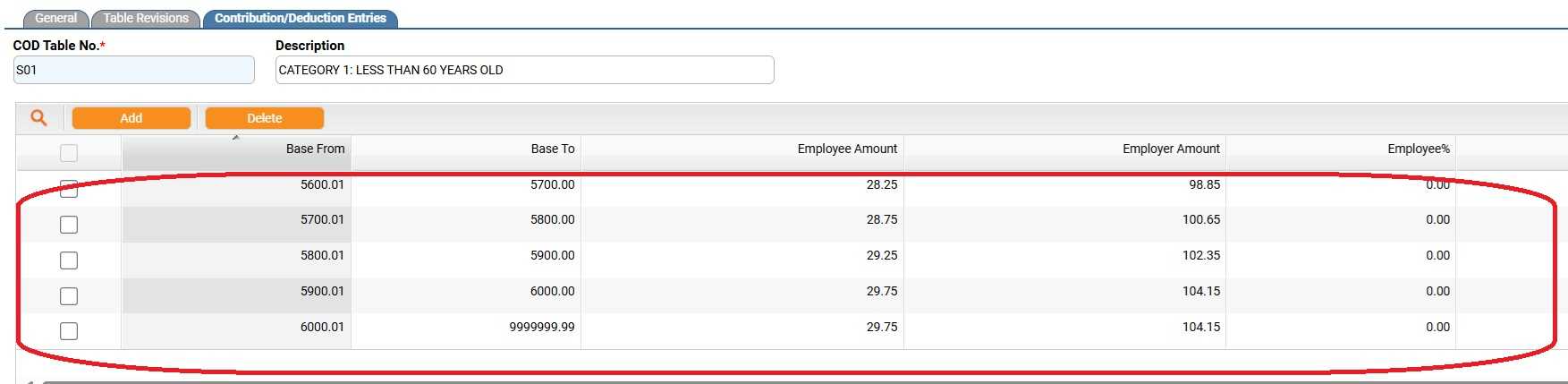
5. Go to Payroll Module > Setup > Payroll Tables > Contribution/Deduction Table > Find S02

6. Go to Table Revisions > Check and ensure the previous record is end at 202409
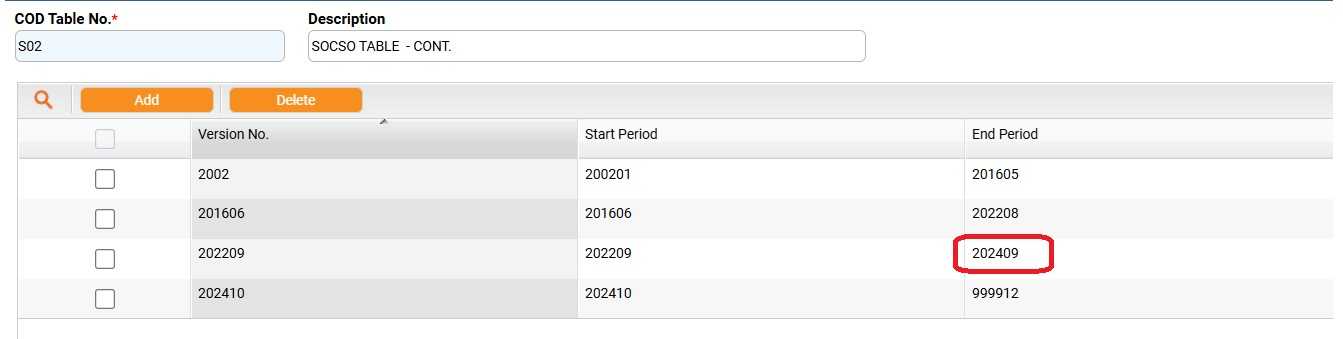
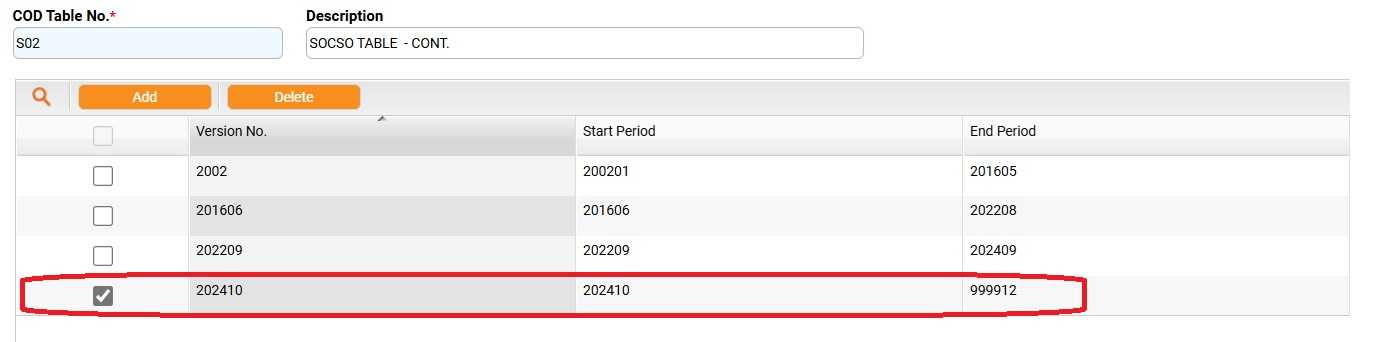
7. Go to Table Revisions > Click on the latest Version record – 202410
8. Go to the Contribution/Deduction Entries Tab to check on the latest contribution of the Sosco Table
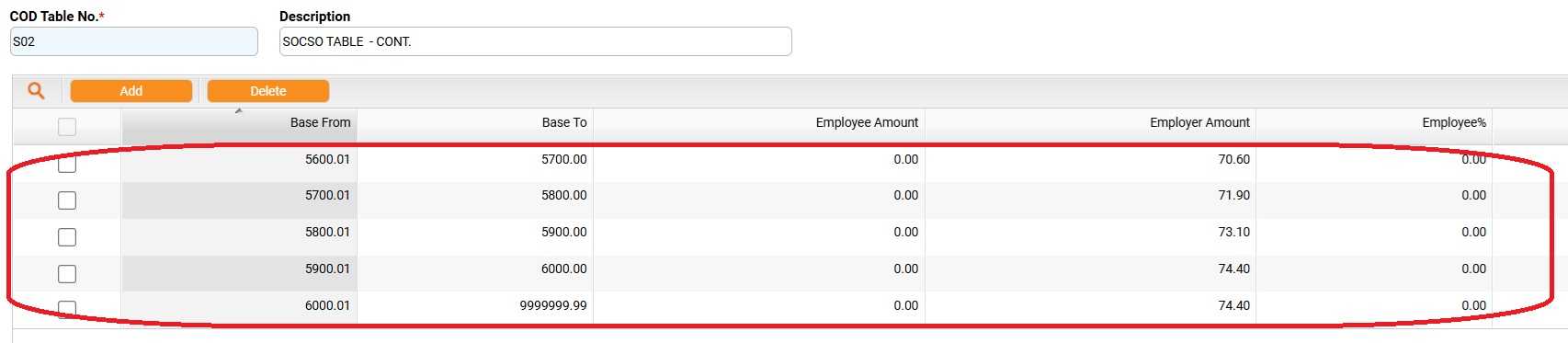
9. Go to Payroll Module > Setup > Payroll Tables > Contribution/Deduction Table > Find I01

10. Go to Table Revisions > Check and ensure the previous record is end at 202409
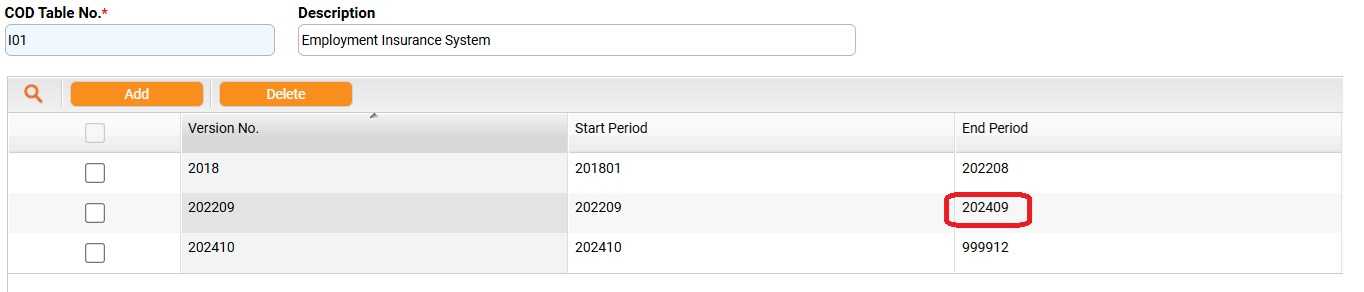
11. Go to Table Revisions > Click on the latest Version record – 202410
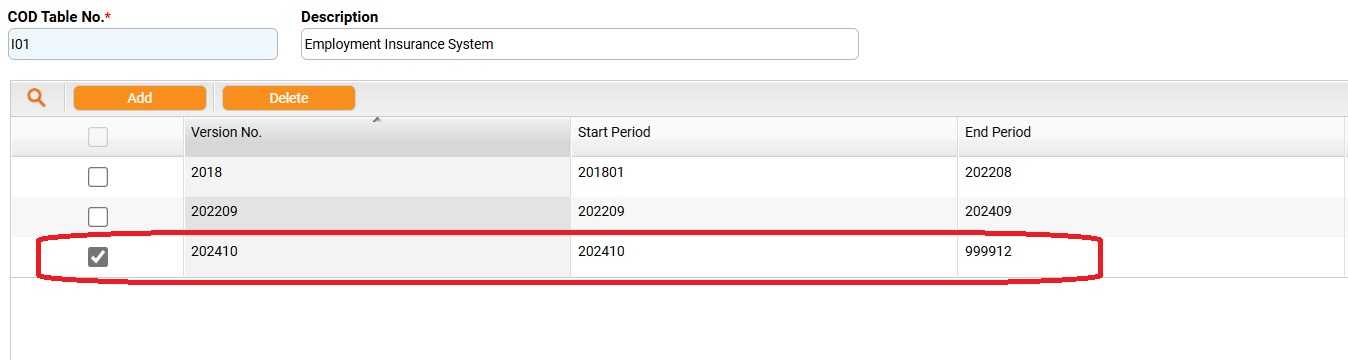
12. Go to the Contribution/Deduction Entries Tab to check on the latest contribution of the EIS Table
